
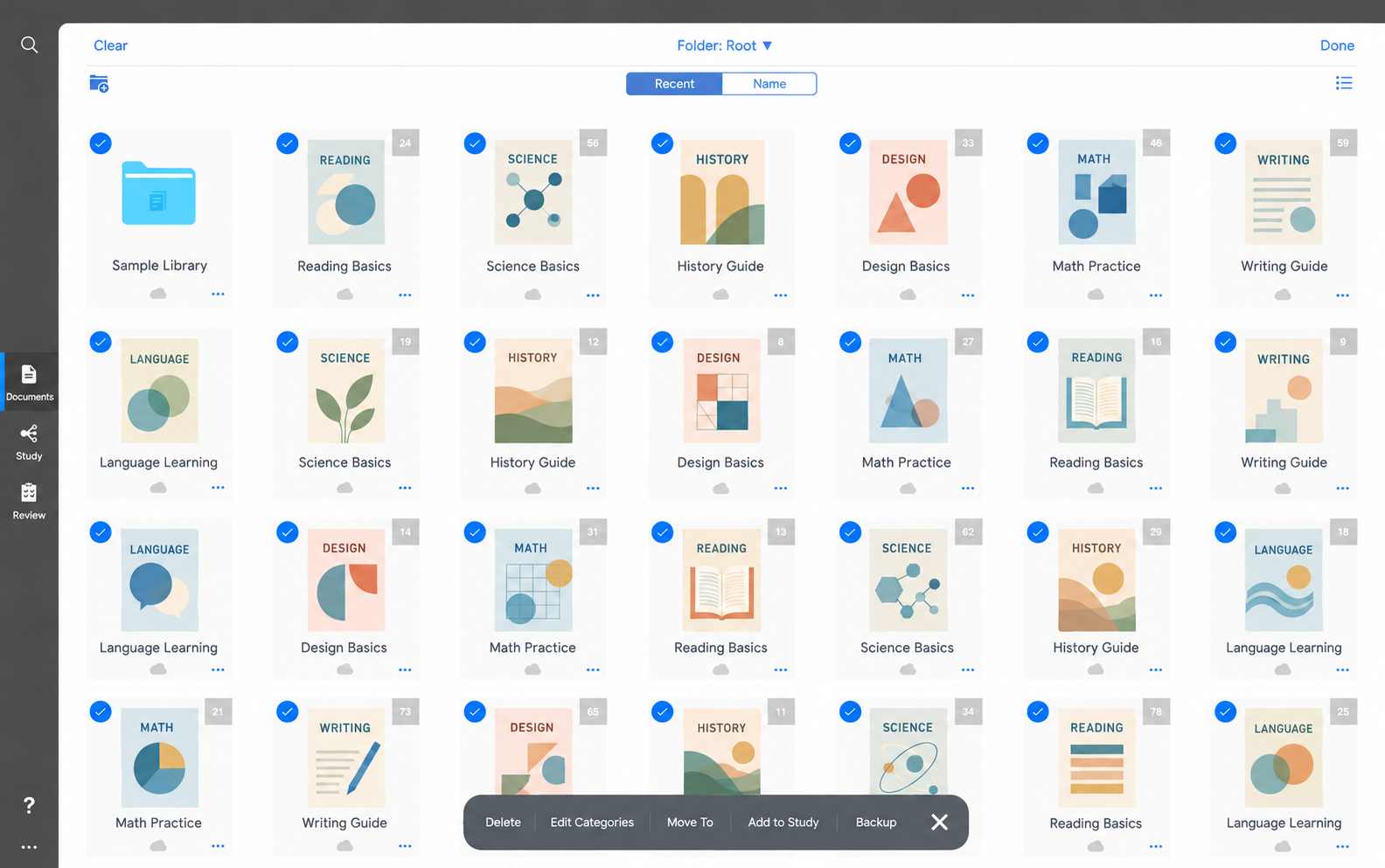
Before you start
Have MarginNote, MindNote and a location to save your backup ready. Sign in to MindNote before importing. Keep the original MarginNote library and backup until you have checked the imported books and maps. If your library is large, start with one representative book, then migrate the rest.
Import the backup into MindNote
Open MindNote, click Import, and select the .marginpkg file you saved from MarginNote. Wait for the import to finish. A package can contain several books: you do not need to upload each PDF separately when those source files are included in the backup.
Check your books and mind maps
Open the imported books in MindNote and inspect their corresponding mind maps. Check a few excerpts, personal notes and branches against your original work. Read the import summary for skipped items or files that failed. MindNote organizes the imported work by book; review the result rather than assuming every MarginNote layout or cross-book relationship is reproduced identically.
Why are some books or notes missing?
Check the documents selected during the MarginNote backup and look for materials in other folders. Confirm you selected the correct .marginpkg file and waited for the import to finish. Review any skipped-item or failed-file notice before retrying the affected materials. Keep the original backup for comparison.
Check your MindNote library capacity
MindNote subscription limits apply to books retained in the library, rather than the number of mind map nodes. Make sure your account has enough book slots for the package. If MindNote reports a library limit, review your plan or available slots before importing again.
MindNote is an independent product, not affiliated with MarginNote. Platform information was checked on 10 October 2026; consult the official sources for updates.